
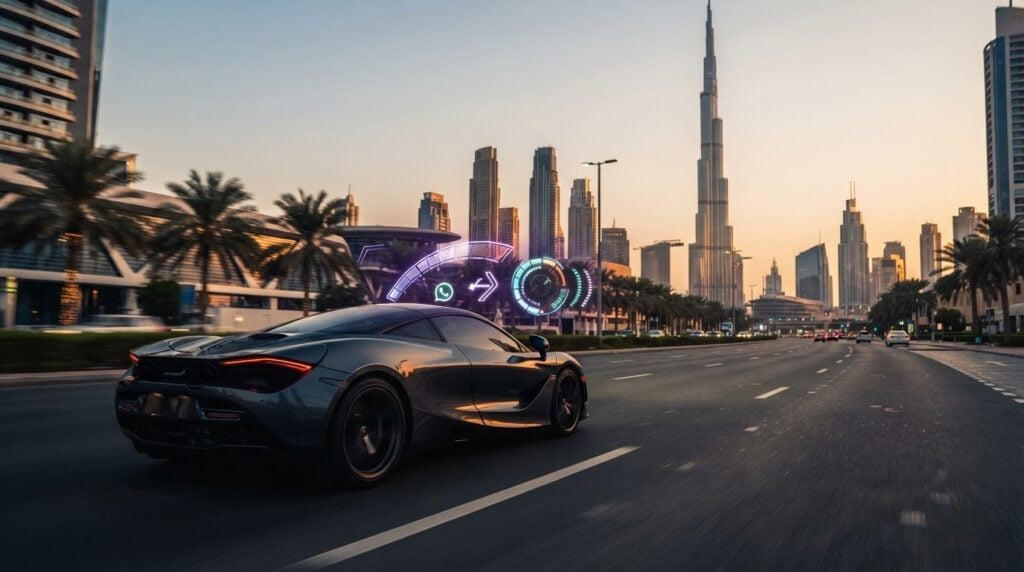
More data doesn’t make a better drive; it can make the road harder to read. The best head up display customization for high performance driving metrics prioritizes quick, useful glances over a crowded screen. A tachometer, gear indicator, or lap timer may help, but only if your vehicle and display support it and the reading suits the driving task.
Before adding a metric, check what data your setup can access, what the reading means, and whether it updates clearly enough to use. Head-up display capabilities vary, so don’t assume a particular vehicle offers adjustable settings or specific performance readings.
This guide explains how to choose a small set of metrics, check compatibility between the display and vehicle data, and arrange information for clear visibility. You’ll also learn how to test a configuration responsibly, including checking readability in different light and with your usual eyewear. Keep the view simple, confirm what each reading means, and make safety the priority.
Key Takeaways
- Understand the differences between factory-integrated HUDs, aftermarket displays, and phone-based projections before choosing a setup.
- Compare factory data, OBD-II, GPS, and phone inputs, and check how their supported signals and update behaviour may vary.
- Use head up display customization for high performance driving metrics to select only system-supported information that serves your driving purpose.
- Build a minimal layout first, then assess whether each added reading is clear and genuinely useful.
- Keep public-road displays simple, and verify applicable UAE requirements and the vehicle manufacturer’s guidance before use.
What Head-Up Display Customization Means for High-Performance Driving
A head-up display (HUD) projects selected information into the driver’s forward field of view. It displays data, but does not generate it. Depending on the setup, information may come from vehicle systems, a connected device, GPS, or an app. For a foundational overview of the technology and its automotive applications, see Head-up display (HUD).
Customization means choosing what appears, arranging its position, and adjusting its appearance. Factory-integrated displays are built into a vehicle’s design and may draw on its onboard systems. Aftermarket units are separate devices that may use GPS or a vehicle connection, while phone-based projections use a smartphone and compatible app. Access to performance data and display controls varies. Check the specific vehicle, device, and software before planning a layout.
Which parts of a HUD can a driver customize?
Depending on the system, settings may let you select metrics, shift their position, adjust brightness, or choose which alerts remain visible. Some displays offer only a few options; others provide more control. These settings change the display, not the vehicle’s engine, performance, or calibration. Check the vehicle or device instructions to confirm which options are available.
Why performance data needs a clear purpose
Give every proposed metric a job. Ask what question the reading should answer and whether seeing it projected helps with that task. A gear indicator might help with orientation during a controlled track session. A temperature reading may help monitor vehicle status if the system provides it. If a metric has no clear purpose, leave it off.
More information doesn’t automatically improve awareness. A busy display can compete with the road for attention, while a slow or misunderstood reading can distract or mislead. Keep the view spare, especially on public roads, and reserve performance-focused layouts for appropriate, controlled driving contexts.
Effective head up display customization for high performance driving metrics starts with a driving question, not a long list of available readings. Select only what the specific system supports and what you can interpret at a glance. The display should complement attention and judgment, never replace them.
How HUD Data Sources Affect High-Performance Driving Metrics
A display can only show information it can receive, and the connection affects how that information behaves. Factory vehicle data, an OBD-II adapter, GPS, and a phone app each have different capabilities. For an engineering example of tailoring a display to a demanding driving environment, see Ansys’ HUD design for performance driving.
Factory data, OBD-II, CAN bus, and GPS
Factory-integrated systems may receive selected signals directly from the vehicle. OBD-II is a standardised diagnostic access point, while CAN bus is an internal network that lets vehicle systems share information. An aftermarket device may use an OBD-II adapter to request data, but access depends on the vehicle, adapter, and software. GPS readings are calculated from satellite positioning rather than taken from vehicle sensors. A phone may provide GPS or app-based information, receive data through another connection, or act as the display itself.
There’s no universal winner. A vehicle signal may be available only through a compatible interface, while GPS readings depend on positioning and calculation. Refresh rates, delays, and the meaning of a reading can differ by hardware and software. Consider each value in light of its source, not just its label.
| Source | Possible data | Limitations | What to check |
|---|---|---|---|
| Factory vehicle data | Vehicle-supported readings, such as speed or engine information | Available signals and adjustment options vary by model | Vehicle manual and display settings |
| OBD-II adapter | Diagnostic signals exposed by the vehicle | Not every vehicle or adapter supports every reading; updates may vary | Vehicle and adapter compatibility, software requirements |
| GPS | Position-based speed or location information | Depends on GPS reception and processing; it may differ from vehicle readings | App documentation and readings in a safe, stationary or controlled test |
| Phone or app input | Phone-sourced data or information received from another connection | Depends on sensors, permissions, connectivity, and app behaviour | Required permissions, connections, and alert settings |
Check compatibility before selecting a display
Start with the vehicle manual and display documentation. Confirm that the exact inputs and metrics you want are supported, and whether they require an adapter, app, software version, or phone permission. Don’t assume a display can show every requested figure just because performance features are listed.
Before relying on a reading, compare it with a trusted vehicle reference in a safe setting. Check that values update consistently and alerts behave as described. This compatibility check is a core step in head up display customization for high performance driving metrics. If you’re exploring a high-performance vehicle, you can ask about available performance car rentals, then confirm the specific vehicle’s HUD equipment and settings directly.
Which High-Performance Metrics Belong on a HUD?
Choose a reading because it answers a driving question, not simply because it’s available. A useful shortlist falls into three groups: orientation, vehicle status, and track-session review. Every example below depends on what the vehicle and display support, and on whether the reading is clear and trustworthy enough to use.
Choose metrics for the driving task
For ordinary road driving, keep the display focused on essential information. A speed reading or gear indicator may be useful if the system provides it and it’s easy to interpret. Avoid adding track-focused figures that don’t support a road-driving decision. Check manufacturer guidance and applicable UAE requirements before using a display on public roads.
On a closed course, session goals may justify a different layout, but only with relevant, supported data and equipment permitted for that setting. Possible examples include engine speed or temperature for vehicle status, and lap timing for session review. G-force, tire information, and shift indicators are also system-dependent, not guaranteed features. Confirm the source and meaning of each reading before relying on it.
Assess each candidate against four questions:
- Relevance: Does it answer a specific question for this drive?
- Readability: Can you understand it in a brief glance?
- Accuracy: Do you know how the system obtains and updates it?
- Attention: Can you use it without shifting focus from the road or track?
What to leave off the display
Remove duplicate readings, decorative graphics, and alerts that don’t prompt a useful response. Don’t present delayed or unverified values as precise real-time information. If a figure takes sustained attention to interpret, it belongs in a post-drive review tool, not in the driver’s forward view.
That restraint matters. The NHTSA study on HUDs and driver distraction examines visual behaviour and driver responses in relation to head-up displays, making it a useful reference when weighing information against attention. A projected number can still distract if it’s cluttered, unclear, or poorly timed.
In practice, head up display customization for high performance driving metrics means choosing the smallest set that serves the current task. Keep public-road information essential. Reserve additional performance readings for an appropriate controlled setting, and only after confirming their accuracy, visibility, and suitability.
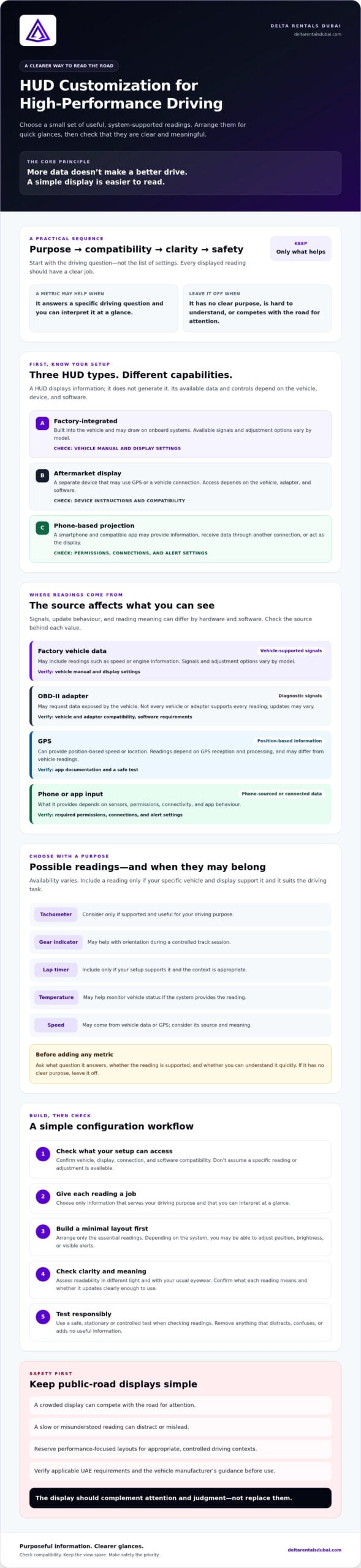
How to Customize and Test a Performance HUD Step by Step
Build the layout in stages, and make every change while the vehicle is safely parked. The aim of head up display customization for high performance driving metrics is a clear, validated view, not the largest possible set of readings.
Set up the display while parked
Before pairing a device or changing settings, read the vehicle manual and the display or app instructions. Follow their guidance for installation, compatible inputs, and adjustments. Never configure the display while driving.
- Define the purpose. Decide whether the display is for ordinary road use or a permitted, controlled driving session. This determines which information is relevant.
- Confirm compatibility. Check that the vehicle, display, software, and any required adapter support the specific inputs and metrics you want. Don’t assume a feature is available because it appears in a menu or product description.
- Choose a minimal set. Start with only the readings that answer essential questions for that purpose. Add another metric only if testing shows it provides clear value.
- Arrange the view. While stationary, adjust position, brightness, and contrast according to system instructions. Keep information legible without overlapping essential vehicle displays or obstructing the forward view. Remove unnecessary alerts and graphics.
- Test, then refine. First compare readings with a trusted vehicle source under safe, stationary conditions. Assess visibility and operation only in an appropriate controlled environment, not by experimenting on public roads.
Validate readings before relying on them
A number projected on the windscreen isn’t automatically accurate or current. Check that it agrees with an appropriate reference, updates consistently, and is clearly labelled. Confirm how the system signals a warning or lost connection. If a reading seems inconsistent, unclear, or delayed, remove it until you can resolve the issue.
Recheck the setup after vehicle, hardware, or software changes, since compatibility and display behaviour may change. For use in the UAE, consult current official UAE sources for applicable requirements and follow the vehicle manufacturer’s instructions. Don’t rely on an outdated forum post or assume guidance for another country applies.
Considering a high-performance vehicle? Ask about available performance car rentals, and verify HUD equipment, settings, and supported readings for the specific vehicle before making plans.
Use Performance HUD Customization Responsibly, and Choose the Right Driving Experience
A head-up display can support awareness, but it can’t replace attention, sound judgment, or familiarity with the vehicle’s controls. Treat every projected reading as supplementary. If an alert is unclear or the display draws your focus from the road, prioritise driving, not the graphic.
Keep road-focused settings simple
For public-road driving, show only information that supports the immediate task and is easy to understand at a glance. Don’t add track-session metrics to a road layout just because the system offers them. Keep your attention on traffic and your surroundings, and don’t adjust the display while moving. Set it up while parked, following the vehicle manufacturer’s instructions.
Before using a HUD on public roads in the UAE, check applicable requirements through current official sources and consult the vehicle manual. Don’t assume that a rule, device approval, or manufacturer recommendation from another country applies locally. If you can’t confirm that a setting is appropriate, keep the display conservative and seek reliable guidance before use.
Explore a high-performance vehicle without assuming its HUD specification
Performance-focused experimentation belongs in an appropriate controlled driving setting, with suitable equipment and a layout checked in advance. Test one change at a time, and remove any reading that is hard to interpret or competes with the task. Even a technically accurate metric can be unhelpful if it demands too much attention.
This is the principle behind head up display customization for high performance driving metrics: match information to the driving context, then confirm the specific vehicle and system support it. Delta Rentals Dubai offers the Porsche 911 GT3 RS as a rental, but HUD equipment, adjustable settings, and available data haven’t been confirmed. Ask directly about the vehicle’s equipment rather than assuming it has a configurable display. For a closer look at the car itself, consult a verified Porsche 911 GT3 RS guide before making plans.
If you’re interested in experiencing this performance car, ask about a Porsche 911 GT3 RS rental and confirm its specific display equipment directly.
Build a HUD Setup That Earns Its Place
A well-chosen display starts with a clear purpose. Match each metric to a driving task, confirm the vehicle and system can provide it, then test the layout while parked and in an appropriate controlled setting. The goal of head up display customization for high performance driving metrics isn’t to show more. It’s to keep useful information readable without competing for attention.
Keep public-road settings simple, follow the vehicle manufacturer’s guidance, and check current official UAE sources for applicable requirements. A HUD can support awareness, but your attention and judgment remain essential.
Delta Rentals offers the Porsche 911 GT3 RS for rental. HUD equipment and adjustable metrics haven’t been confirmed, so ask about the specific vehicle’s features before making plans. Ask about a Porsche 911 GT3 RS rental, and confirm its equipment directly. Start with a clean view, validate what you see, and enjoy the drive with confidence.
Frequently Asked Questions
What is a head-up display in a car?
A head-up display projects selected driving information into the driver’s forward field of view, often onto the windscreen or a separate transparent panel. The HUD is the display, not the source of the information. Depending on the system, it may show vehicle data, navigation prompts, or readings received from a connected device. Its capabilities vary, so check the vehicle manual or device instructions to see what information it supports.
Can you customize a head-up display for performance driving?
Often, but the available choices depend on the vehicle, display hardware, and software. Some systems let drivers select readings or adjust position and brightness; others offer limited settings. For head up display customization for high performance driving metrics, confirm which data is supported, then begin with a minimal layout. Adjust it while parked, follow manufacturer guidance, and use performance-focused settings only in an appropriate controlled driving environment.
Which metrics should I put on a performance driving HUD?
Choose only readings that serve a clear purpose and that your system supports. Depending on the setup, examples might include speed or gear for orientation, engine speed or temperature for vehicle status, and lap timing for a controlled track session. G-force, tire data, and shift indicators aren’t available on every system. Keep public-road displays focused on essential information, and leave off readings that are hard to interpret at a glance.
How do I connect a HUD to OBD-II or GPS data?
First check the display instructions and vehicle manual for supported connections. An OBD-II setup may require a compatible adapter and software, and the vehicle may not provide every requested signal. A GPS-based display or app uses location data and may need a phone or device with location access enabled. Pair or connect devices while parked, then verify readings against a trusted vehicle source before relying on them.
Can a head-up display distract you while driving?
Yes. A HUD can still draw attention away from driving if it’s cluttered, difficult to read, or filled with alerts that don’t support a decision. Keep the layout simple and remove duplicate or unverified information. Don’t adjust settings while moving. If a reading takes sustained attention to understand, it’s better suited to review after the drive than to a display in your forward view.
Can I add a performance HUD to a car that does not have one?
Possibly. Aftermarket displays and phone-based projections may be options, but compatibility, available data, placement, and visibility depend on the vehicle and device. Check product documentation and current official UAE sources for applicable requirements before installation or use. If you’re considering a rental, confirm the specific vehicle’s equipment directly. Don’t assume it includes a HUD, adjustable display settings, or access to performance data.