
What if the smoothest part of your rented Rolls-Royce journey happens before you start driving? Using the navigation system in a rented Rolls Royce is easier when you learn the controls, choose your map source and enter your destination while parked. A few minutes of preparation can keep unfamiliar menus from becoming a distraction on the road.
It’s reasonable to wonder how to enter an address, follow directions or recover after missing a turn, especially when infotainment controls and phone connections vary by vehicle. This guide explains how to prepare with confidence, set your route before departure and respond safely if plans change.
You’ll learn how to get started with built-in navigation or a connected phone, what to consider when following prompts and how to handle a missed turn without making rushed adjustments. If you’d rather leave the route to someone else, Delta Rentals Dubai also offers luxury chauffeuring. Whether you’re renting a Rolls-Royce Cullinan Black Badge or another model, getting familiar with the controls can make the journey feel more straightforward.
Key Takeaways
- Learn the navigation controls while parked, before setting off.
- Enter your destination and review the route before you start driving.
- Choose built-in navigation or phone maps based on familiarity, display and connection needs.
- Keep your attention on the road. If you miss a turn, follow updated guidance when it’s safe.
- Use the handover to locate controls and understand the vehicle, or choose luxury chauffeuring if you’d rather leave the navigation to someone else.
Using the Navigation System in a Rented Rolls-Royce: What to Expect
A premium car can feel unfamiliar at first, even if you’re comfortable behind the wheel. During the handover, take a moment to locate the navigation controls. In-car navigation displays route guidance and destination information, such as your selected route and position along it. For a concise overview of how these systems work and have evolved, see this guide to the automotive navigation system.
The basic process is simple: enter your destination, review the proposed route, then use visual or spoken prompts to guide the journey. The display can help you understand what’s coming up, but it doesn’t take over the driving task. Navigation can guide your route; staying attentive and making safe driving decisions remains your responsibility.
Which navigation controls should you locate first?
Start with the central display and find how to open the navigation function. Depending on the layout, you may use touchscreen icons, physical buttons or a control near the centre console. Look for the map or navigation option, then identify where destination entry, the map view and active route guidance appear. The labels and arrangement can differ, so learn the controls in the vehicle you’re driving instead of relying on instructions for another car.
Use the handover to get oriented while the vehicle is stationary. Ask for a demonstration of how to return to the map if another screen is open, adjust the guidance volume if that option is available, and exit navigation when you no longer need it. Knowing these controls in advance can prevent you from fumbling with unfamiliar menus later.
Why rented Rolls-Royce systems may differ
“Rolls-Royce navigation” doesn’t mean every rental has the same interface. Vehicle generation, model year and equipment can affect how menus are arranged and which phone connections are supported. A control in an online tutorial may look different in your vehicle, and a connection method described for one model may not apply to another.
Treat general guidance as a starting point, not a substitute for the vehicle’s own instructions. Use the supplied owner’s manual or in-car guidance for model-specific controls, especially if you’re unsure how to open navigation or connect a phone. If a feature isn’t clear, pause and ask for an explanation during the handover rather than exploring menus while moving.
- Find: the central display and navigation controls.
- Recognise: where destination entry, the map and route guidance appear.
- Verify: model-specific steps using the vehicle’s supplied instructions.
This quick orientation makes using the navigation system in a rented Rolls Royce more manageable without assuming every vehicle works the same way. Once you know where the key controls are, you’re ready to set up your route.
How to Set a Destination Before Driving a Rented Rolls-Royce
Set your route while the car is stationary, before traffic demands your attention. The controls vary between vehicles, but the preparation routine is straightforward: use the navigation interface in your car, check the result carefully and start driving only when you’re ready.
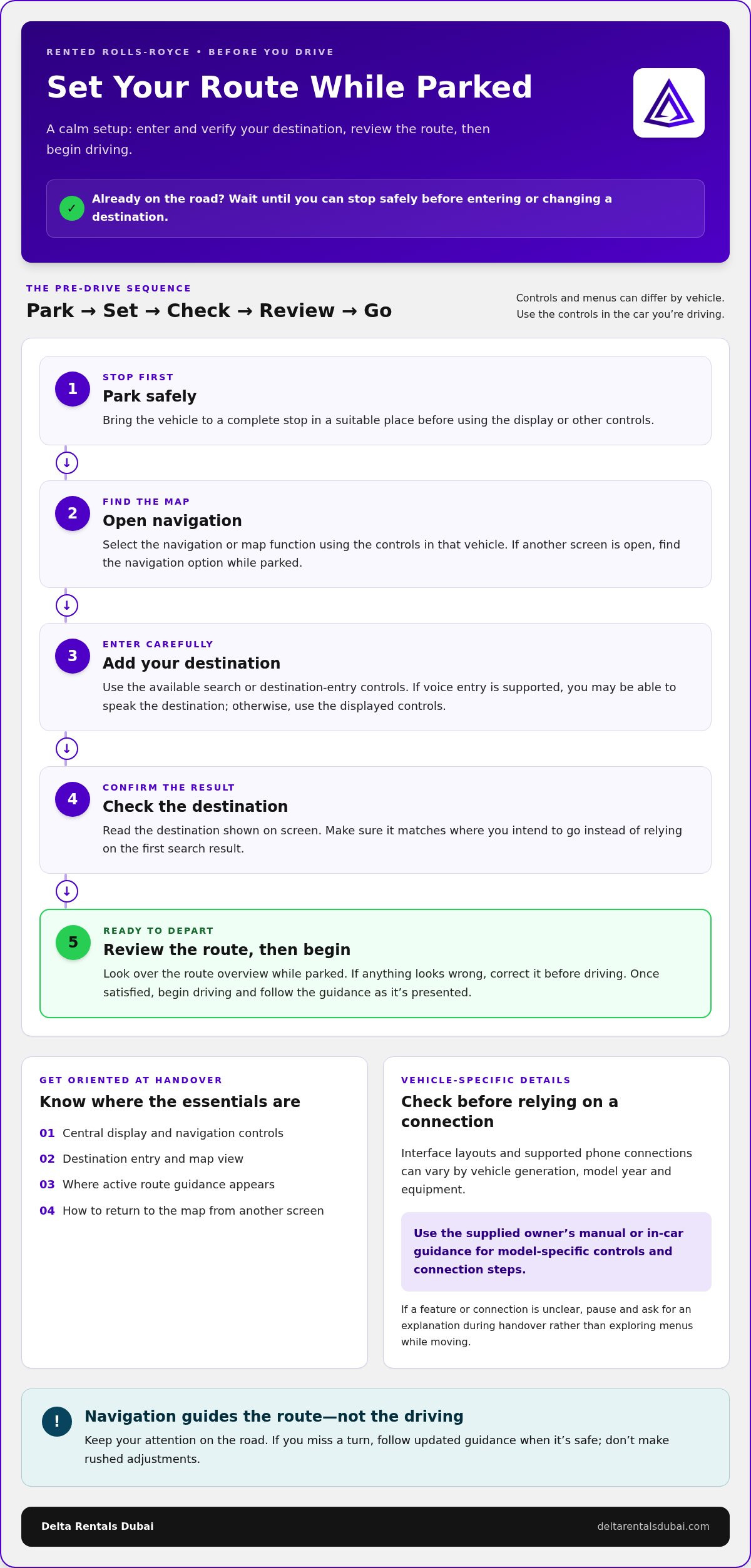
Park, open navigation, enter and verify the destination, review the route, then begin driving.
- Park safely. Bring the vehicle to a complete stop in a suitable place before using the display or other controls. If you’re already on the road, wait until you can stop safely before entering or changing a destination.
- Open navigation. Select the navigation or map function using the controls in that vehicle. If another function is on screen, find the navigation option while parked rather than trying different controls as you drive.
- Enter the destination. Use the available search or destination-entry controls. If the vehicle supports voice entry, you may be able to speak the destination. Otherwise, use the displayed controls and take care with similar street or destination names.
- Check the result. Read the destination shown on screen before selecting a route. Confirm that it matches where you intend to go instead of relying on the first search result.
- Review, then begin. Look over the route overview while parked. Once you’re satisfied with the destination and route, begin driving and follow the guidance as it’s presented.
Entering and checking your destination
Search using the method provided in the vehicle, such as on-screen controls or another available input. Enter enough detail to distinguish your intended destination from similar results. Check the displayed name and location before confirming, then review the route overview to understand the general direction. If anything looks wrong, correct it while parked. These checks make using the navigation system in a rented Rolls Royce more composed from the outset.
Connecting a phone when the vehicle supports it
Phone integration depends on the vehicle’s equipment and model year, so don’t assume Apple CarPlay, Android Auto or phone-based navigation through Bluetooth is available. Before relying on a phone map, consult the vehicle’s supplied instructions for the relevant connection steps and supported functions. If the connection isn’t straightforward, use a navigation option you can operate confidently rather than troubleshooting while driving.
A calm setup is part of an effortless rental experience. If you’re considering a Rolls-Royce, you can explore Rolls-Royce rental options and plan to get familiar with the vehicle’s controls before departure.
Built-In Navigation or Phone Maps: Choosing the Right Option
Neither built-in navigation nor phone maps is automatically the right choice for every rental. Consider what the vehicle supports, which interface you find easier to use and how you prefer to view directions. Choose one primary guidance source and prepare it while parked. Switching between competing prompts can create unnecessary confusion, especially when you’re still getting familiar with the car.
| What to compare | Built-in navigation | Phone maps |
|---|---|---|
| Familiarity | May be new to you; take time to learn the controls. | Can feel familiar if you regularly use the map app on your device. |
| Display | Uses the vehicle’s navigation interface, where equipped. | Display and presentation depend on the supported connection and setup. |
| Connection | Works through the vehicle’s own system, depending on its equipment. | Requires a compatible connection between the vehicle and your device. |
| Preparation | Learn where to enter a destination and view the route. | Check connection instructions and prepare the phone before departure. |
When built-in navigation may feel more convenient
If the vehicle has built-in navigation, it may suit you if you’d rather use controls integrated into the car than set up a phone connection. The interface may still be unfamiliar, so locate the map, destination search and guidance controls before relying on them. Check the supplied instructions for the specific vehicle, and don’t assume every system has the same functions.
When phone maps may suit your preferences
A phone map may be a comfortable choice if you already know how to search, save or select destinations in your usual app. Using it in the car depends on the vehicle’s equipment, model year and phone compatibility, so check the relevant connection instructions first. If supported, connect and configure the phone while parked, then secure it in a suitable position where it won’t distract you.
Use this quick decision guide while parked:
- Choose built-in navigation if its controls are clear to you and the available system meets your needs.
- Choose phone maps if you prefer your familiar app and have confirmed a supported connection.
- Keep to one source once you begin, rather than trying to follow directions on different screens.
Using the navigation system in a rented Rolls Royce is less about choosing the most advanced-looking screen and more about preparing a route you can follow calmly. If neither option feels straightforward, pause before setting off and review the vehicle’s instructions. Once underway, keep your attention on driving instead of adjusting maps or connections.
How to Follow Navigation Prompts and Handle a Missed Turn
Once your route is active, use the guidance to support your awareness of the road, not replace it. You may see a map, an upcoming turn or distance information, and some systems provide spoken directions. The display and available prompts depend on the vehicle and its settings. Glance at the screen only when it’s safe, and keep your attention on traffic, signs and the road ahead.
Understanding visual and spoken directions
Visual guidance may show the route on a map and highlight an upcoming manoeuvre. Check the direction and any distance cue, then return your focus to driving. Spoken prompts can provide reminders without requiring you to watch the display continuously, but their availability and volume depend on the system’s equipment and settings. Learn which cues your vehicle provides before relying on them.
If the directions are too quiet, distracting or difficult to follow, wait until you’re safely parked before changing preferences. Don’t search through menus or adjust guidance while moving. If you’re unsure what a prompt means, prioritise the road and traffic conditions over making a sudden turn. It’s better to continue safely than to react abruptly to a screen instruction.
Resetting the route without rushing
Missing a turn can happen. The navigation system may recalculate the route and offer revised guidance. Continue along the road only if it’s safe and appropriate. Don’t reverse, stop unexpectedly or make a sudden lane change to reach the missed turning. Wait for the next instruction and follow it when the road situation permits.
A missed turn is a minor detour, not an emergency: stay calm, keep driving safely, and follow the revised route when it’s safe.
If the destination is wrong or you need a different route, don’t edit it while driving. Find a suitable place to stop safely first. Then check the destination on screen and make changes using the controls you learned during the handover. This pause keeps route adjustments separate from the demands of driving.
- Listen or glance briefly: use the available prompts without watching the display continuously.
- Continue safely: if you miss a turn, wait for revised guidance instead of making a rushed manoeuvre.
- Stop before editing: pull over safely before changing a destination or exploring complex menus.
With a clear routine, using the navigation system in a rented Rolls Royce can feel more composed, even if the route changes. For a Rolls-Royce rental, message Delta Rentals Dubai about your rental.
Prepare for Your Rolls-Royce Journey with Delta Rentals
A composed drive starts with a few calm minutes at handover. Take time to get familiar with the vehicle in front of you. Locate the navigation controls, set your destination while stationary, check the selected route and ask for clarification about any vehicle operation you’re unsure of. A quick orientation can make an unfamiliar interface easier to use.
Make navigation familiar before the journey
Use this simple handover routine:
- Locate the controls: Find the central display and learn how to open navigation or the map.
- Set your destination: Enter it using the controls available in that vehicle while safely parked.
- Review the route: Check that the displayed destination is correct and that you understand the route guidance.
- Ask about operation: Clarify unfamiliar controls during handover and consult the vehicle’s supplied instructions for model-specific details.
Keep the setup simple. Don’t assume every Rolls-Royce has the same menus, phone connections or navigation functions. Learn the controls in your rental instead of relying on instructions meant for another model year. Once moving, focus on driving and use prompts as guidance, not as a substitute for attention to the road.
Delta Rentals offers Rolls-Royce Cullinan Black Badge rental. Explore the Rolls-Royce rental options and plan to familiarise yourself with the vehicle during handover. A little preparation can make using the navigation system in a rented Rolls Royce more straightforward and leave you better placed to enjoy the drive.
Choose the driving experience that suits you
Self-driving lets you manage your own route with the vehicle’s built-in navigation or a phone map, if the car supports the connection and your device is compatible. Choose your preferred guidance source before setting off, and avoid changing settings while driving. If you’d rather enjoy the journey without navigating, Delta Rentals offers luxury chauffeuring.
Whether you prefer the independence of driving or a hands-free journey, choose the experience that suits your plans. For rental enquiries, message Delta Rentals Dubai about a Rolls-Royce rental.
Set Your Journey Up for a Confident Start
A little familiarity before departure gives you more room to enjoy the experience once the journey begins. Take the handover at your own pace, get comfortable with the specific vehicle’s controls, and decide whether you’d prefer to navigate yourself or let someone else manage the route. With the right setup, using the navigation system in a rented Rolls Royce can feel like a natural part of the drive rather than another task to manage.
Delta Rentals offers the Rolls-Royce Cullinan Black Badge for renters who want to take the wheel, as well as luxury chauffeuring for those who prefer to travel without navigating themselves. Choose the style of journey that suits your plans.
Ask Delta Rentals about a Rolls-Royce rental on WhatsApp and plan your journey with confidence.
Frequently Asked Questions
How do I use the navigation system in a rented Rolls-Royce?
Open the map or navigation function and search for your destination using the controls in that vehicle. Check the result carefully, especially if the name could refer to more than one place. For a large venue, compare the displayed destination with the specific address or entrance you intend to reach. Using the navigation system in a rented Rolls Royce is easier when you learn the available controls before the journey.
Can I use Google Maps in a rented Rolls-Royce?
Yes, if the vehicle supports a compatible connection for your phone and Google Maps. Setup can vary, so check the vehicle’s supplied instructions and your device settings before relying on the app. If phone integration isn’t available, you may be able to use the phone’s own map separately. Secure it and set it up before departure, then follow one guidance source during the drive.
Does every Rolls-Royce have the same navigation system?
No. The interface and available functions can differ by model year, generation and equipment. A tutorial for one Rolls-Royce may show controls that don’t match your rental. Use the supplied owner’s instructions for that specific vehicle, and treat general guides as a starting point. During handover, ask for help identifying unfamiliar controls rather than experimenting on the road.
Can I enter a destination while driving?
Enter or edit a destination while parked safely, before you set off. Searching requires attention, and selecting and verifying an address can take several steps. If your route changes while you’re moving, wait until you can stop in a suitable safe place before entering a new destination or adjusting complex settings. A passenger can assist with navigation, but the driver should remain focused on driving.
What should I do if I miss a turn?
Stay calm and continue along the road if it’s safe. The navigation system may calculate a revised route, so wait for updated guidance rather than braking suddenly, reversing or making an abrupt lane change. If the system doesn’t provide a useful route or you need to correct the destination, stop safely before changing it. A missed turn is usually a reason to adjust the route, not to rush.
Can I connect my phone to a rented Rolls-Royce for navigation?
That depends on the vehicle’s equipment, model year and your phone’s compatibility. Connection methods and supported functions can vary, so consult the vehicle’s instructions rather than assuming a particular service is available. Try connecting while parked, then confirm that the map and any audio guidance work as expected. If setup isn’t straightforward, use another navigation option you can prepare safely before departure.
Is built-in navigation better than using phone maps in a rental car?
Neither is automatically better. Built-in navigation may suit you if you’re comfortable with the vehicle’s interface; phone maps may feel more familiar if you regularly use the app. Your choice depends on the car’s supported equipment, how easily you can read the display and how much setup you’re comfortable doing. Compare the options while parked, then choose one primary source to avoid conflicting prompts.