
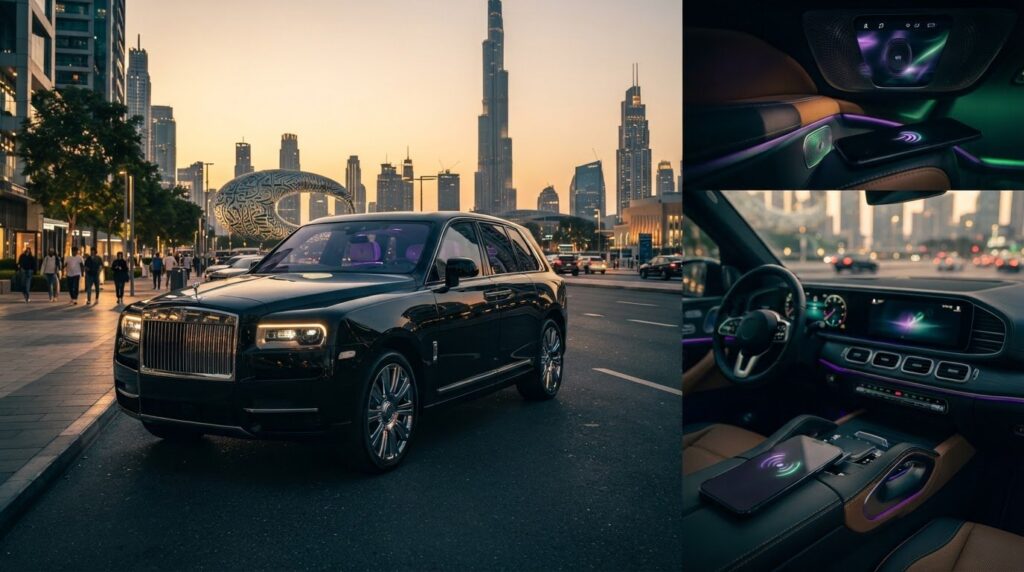
Your playlist should be the easy part of a Rolls-Royce drive. Yet connecting your playlist to a Rolls Royce sound system can feel less effortless when your phone and the vehicle use different menu labels, or when connection options vary by model and year.
The right setup depends on your Rolls-Royce, your phone, and the connections fitted to the vehicle. Bluetooth may be available, while some vehicles support Apple CarPlay or Android Auto. This guide explains how to choose a compatible method, pair your phone, select your playlist, and troubleshoot playback without unnecessary menu hunting.
You’ll also find simple steps to disconnect your phone or remove its saved access after use. Set up your playlist while parked, then keep your attention on the road once the drive begins. Whether you’re preparing your own Rolls-Royce or driving a Rolls-Royce Cullinan Black Badge rental, a little preparation can make listening easier from the first track.
Key Takeaways
- Pairing connects your phone to a compatible vehicle system, but you may still need to select it as the media source.
- Choose Bluetooth or a wired or phone-integration option based on what your Rolls-Royce and phone support.
- For connecting your playlist to a Rolls Royce sound system, follow the vehicle’s pairing prompts, then start playback from your phone.
- Set up your playlist and test playback while safely parked, so adjustments don’t distract you on the road.
- After temporary use, disconnect your phone and remove its saved pairing access if you don’t want the vehicle to remember it.
Connecting a Playlist to Rolls-Royce: What to Know
You want to hear a familiar playlist through the vehicle’s audio system, not spend the drive searching through menus. Pairing connects a phone to a compatible vehicle system so it can provide audio for playback. It doesn’t always start the music automatically: you may also need to choose the phone or its integration feature as the vehicle’s media source.
The three essentials are a compatible phone, a connection method the vehicle supports, and time to set everything up while parked. Keep those in mind when connecting your playlist to a Rolls Royce sound system. They make the process easier, even if the screen labels don’t match the wording on your phone.
What you need before connecting your phone
Have your phone and preferred playlist app ready, and locate the vehicle’s media controls. The connection must work with both the phone and the vehicle. Depending on the installed equipment, that could mean a wireless option or a wired connection. Don’t assume one method is available in every Rolls-Royce.
Use the vehicle’s on-screen prompts or owner documentation to find the relevant settings. Menu names can vary, so follow the instructions shown in your vehicle rather than relying on directions for another model. Prepare while parked, before setting off.
Why the Rolls-Royce interface may differ
The model, model year, installed equipment, and software can all affect which connection options appear and how they’re labelled. A guide for a different vehicle may refer to a menu or feature you can’t see. Use general instructions as orientation, then follow your own screen and documentation for the precise steps.
Keep the three parts of playback distinct: your phone runs the music app, the supported connection carries audio, and the vehicle system plays it through the cabin audio. Bluetooth is one possible way to transmit audio wirelessly; this overview of Bluetooth technology in car audio provides additional background. Even after pairing your phone, you may need to select it as the media source.
Streaming and stored playlists can behave differently depending on the app and phone. If a playlist relies on an internet connection, check that it loads before departure. If it’s stored for offline listening, open the app and confirm the tracks are available. This can help you tell the difference between an app or connectivity issue and a vehicle connection issue.
- Phone: Have the device and playlist app ready.
- Connection: Use only a method supported by both the vehicle and phone.
- Vehicle controls: Find the media settings and follow the displayed prompts.
- Timing: Complete setup while safely parked, not while driving.
With those basics covered, you can identify a suitable connection before moving on to the pairing steps.
How Phone Pairing Sends Your Playlist Through the Car Audio
Think of playback as a short chain: your phone plays a track in a music app, a supported connection carries its audio to the vehicle, you select the right media source, and the car’s audio system plays it in the cabin. Each part has a distinct role. The phone provides the content, the connection transfers it, and the vehicle routes it to the speakers.
Pairing alone doesn’t always start your playlist. The phone must be connected, the correct media source selected, and playback started. Keeping these steps separate makes it easier to identify what needs attention if the cabin stays quiet.
Bluetooth pairing and audio playback are separate steps
Pairing establishes a connection between compatible devices. With Bluetooth, for example, the phone and vehicle recognise each other so they can communicate. That doesn’t necessarily tell the vehicle to play music. You may need to select the connected phone or Bluetooth as the media source through the vehicle’s controls. The label and menu route depend on the interface, so follow the displayed options rather than assuming every model uses the same button names.
Use this sequence as a guide, adapting it to the prompts on screen:
- Connect the phone using a method supported by the vehicle.
- Choose the phone or relevant connection as the media source.
- Start or resume the playlist on the phone.
If the phone shows as connected but there’s no music, check the selected source before pairing again. Reconnecting won’t help if the vehicle is still set to a different input.
The role of the playlist app and phone settings
Your chosen app plays the playlist on the connected phone. Check that the intended track is playing, the phone’s audio output is directed to the vehicle connection, and the app can access the playlist. Streaming may be affected by connectivity. An app that’s paused, waiting to load, or sending audio to another output can leave the cabin silent even when the phone appears connected.
Calls, notifications, and music may also use separate phone or vehicle settings. Depending on the device and system, calls may connect while media audio is routed elsewhere, or notification sounds may be managed independently. If playback behaves unexpectedly, check the phone’s connected-device audio options and the vehicle’s media settings while parked. Don’t change menus while driving.
In a temporary vehicle, it helps to distinguish a connection problem from an app issue before changing settings. If the phone is connected and the media source is correct, check whether the app is actively playing and whether its audio is routed to the vehicle. This keeps troubleshooting focused and avoids repeatedly deleting and recreating the pairing.
For a drive in a Rolls-Royce Cullinan Black Badge, Delta Rentals Dubai offers Rolls-Royce rentals.
Bluetooth or Wired Playback: Choosing a Supported Connection
Wireless playback keeps the cabin free of cables, while a wired connection may suit a phone and vehicle that support the same input or integration feature. Neither method is automatically available in every Rolls-Royce. The vehicle’s actual inputs and equipment determine which options you can use, and your phone must support the other end of the connection.
The best method is the one supported by both your phone and the vehicle. Use this comparison as a starting point, then match it to the options shown in the vehicle’s media settings or owner documentation.
| Connection | Setup effort | Cable needed? | May suit |
|---|---|---|---|
| Bluetooth | Pair compatible devices, then select the media source | No | Regular listening without connecting a cable |
| Wired audio or phone integration | Connect compatible devices and choose the corresponding source or feature | Usually, depending on the method | Listening through a supported vehicle input or integration feature |
When Bluetooth is the practical choice
Bluetooth can be convenient if both devices support the required connection. Once paired, you can play audio without plugging in a cable. It may suit regular listening, especially if you prefer to keep your phone connected wirelessly. Stability and available playback controls can depend on phone settings, software, and vehicle equipment, so don’t assume every device combination behaves identically.
If audio cuts out or controls behave differently than expected, check the phone’s connection and media settings alongside the vehicle’s selected source. A wireless connection can be active for one function without routing playlist audio as expected. Make adjustments while parked and follow the prompts shown for that vehicle.
When a cable or phone-integration feature may help
A wired option is worth considering only if the vehicle has a compatible input or integration feature and your phone can connect to it. The port, cable type, and phone connector all matter. A cable that fits may not carry audio or support the vehicle’s intended function. Phone integration also depends on the relevant feature being present and compatible.
Before choosing this route, identify the vehicle’s available inputs and check your phone’s connection requirements. Don’t assume that a USB port supports audio or that a particular phone-integration feature is fitted. If the system recognises the phone but the playlist doesn’t play, check whether you’ve selected the matching media source.
For connecting your playlist to a Rolls Royce sound system, choose a method both the vehicle and phone support, not simply the most convenient one. Once you’ve identified a compatible option, follow a safe setup sequence and test playback before setting off.
How to Connect Your Playlist: A Safe, Simple Setup Sequence
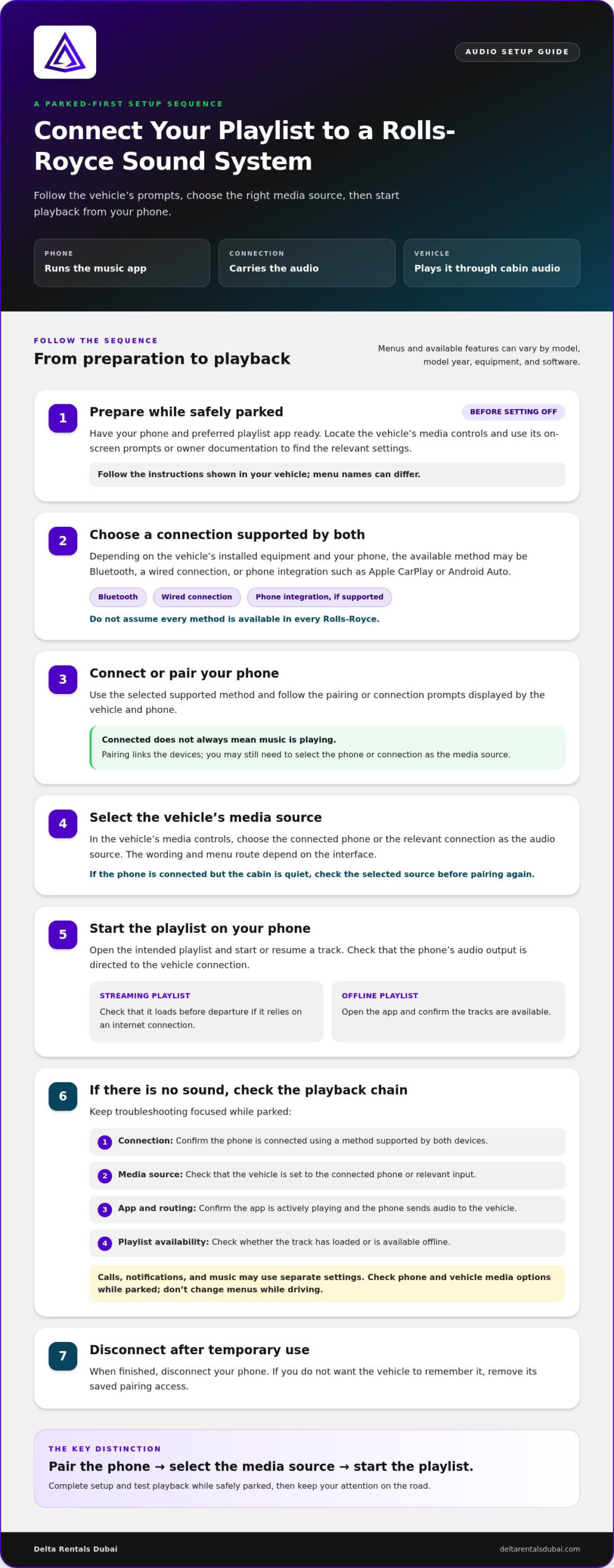
Set up your phone before you begin driving. Connectivity options and screen labels can vary by model, year, and installed equipment, so treat labels such as “Phone,” “Bluetooth,” or “Media” as examples, not universal instructions. Follow the prompts shown in your vehicle and refer to its owner documentation if you need help locating a setting.
Pair the phone and select the media source
Keep the vehicle stationary throughout setup. Have your phone ready and use its settings to enable a connection method the vehicle supports. For Bluetooth, this generally means making the phone available for pairing and accepting the connection request on both screens. Then select the connected phone as the audio source if the vehicle prompts you to do so.
- Park safely. Complete pairing and any adjustments before setting off.
- Open vehicle connectivity settings. Look for the relevant phone or connection menu. The wording and location differ between systems.
- Start pairing. Enable the supported method on the phone and vehicle, then follow the displayed instructions. If a code or confirmation appears, make sure both devices show the expected request before accepting.
- Select the audio source. Choose the connected phone or corresponding media option if it isn’t selected automatically.
- Start your playlist. Open your preferred app, start playback, and check that the sound comes through the vehicle audio.
Menu names in these steps are descriptions, not guaranteed button labels. Choose the option that matches the prompts on your screen rather than searching for an exact phrase from another model’s instructions.
Troubleshoot when the playlist will not play
If the phone appears connected but there’s no music, keep the vehicle parked and check a few points in order. Confirm the phone is connected to the intended vehicle, the playlist is actively playing, and the vehicle has selected the phone as its media source. Then check the phone’s volume and audio-output settings, along with the vehicle’s audio controls.
If playback still doesn’t start, disconnect and remove the saved pairing from both the phone and vehicle, where those options are available. Restart setup by following the vehicle’s on-screen prompts. Don’t try different menus or troubleshoot while driving; pause somewhere safe first. These checks make connecting your playlist to a Rolls Royce sound system more straightforward without distracting you on the road.
Delta Rentals Dubai offers Rolls-Royce rentals for drivers who want to enjoy a personal soundtrack on the road. View Rolls-Royce rental options.
Enjoy Your Playlist in a Rolls-Royce, and Disconnect Afterwards
A little preparation makes it easier to enjoy your music without handling setup once the journey begins. Before setting off, arrange the playlist queue, connect your phone, and test the sound through the vehicle audio while parked. If the playlist depends on streaming, check that it loads. For stored music, confirm the tracks are available in the app.
Keep listening simple during a drive
Choose the queue before you move, then keep the phone somewhere secure and out of the way. If the vehicle has steering-wheel or passenger playback controls, use them only when it’s safe and appropriate. Control layouts and functions vary, so don’t assume a particular button is fitted. If a change needs attention on the screen, wait until you’re parked.
For a luxury drive, the vehicle is part of the experience. If you’re considering a Rolls-Royce Cullinan Black Badge rental, prepare your playlist alongside the rest of your plans, then test playback before setting off. That keeps the focus on the journey rather than navigating menus on the road.
Protect your device privacy after the drive
When you finish using a temporary vehicle, disconnect your phone if you don’t want it to remain connected. Disconnecting may stop the current session without deleting saved pairing details. If you’d prefer the vehicle not to remember your device, use its settings to remove the phone from the paired-device list, where that option is available.
Menu paths and labels differ by model, year, and installed equipment. Follow the vehicle’s displayed settings or owner documentation rather than instructions for another interface. You can also remove the vehicle from your phone’s saved Bluetooth devices if you no longer want the phone to reconnect to it.
Before returning the vehicle, check both sides of the connection. Disconnecting stops the active link; removing saved access helps prevent the phone or vehicle from retaining pairing details for future use. Choose the option that suits your privacy preference, especially if other people will use the phone or vehicle.
- Finish playlist and audio checks while parked.
- Disconnect the phone after temporary use.
- Remove saved pairing details if you don’t want the device remembered.
With playback ready and device access cleared afterwards, you can make the soundtrack part of a considered drive. Delta Rentals Dubai offers Rolls-Royce rentals for a drive with your own playlist.
Make the Drive Your Own
A personal playlist can make a drive feel more like your own, especially when the vehicle and connection method suit the way you listen. Much like tailoring the cabin environment with vehicle enhancements such as window tinting Tampa to manage glare and climate, having your audio properly configured ensures the entire interior matches your preferences. Before setting off, choose music that fits the journey and let the technology fade into the background. That’s the idea behind connecting your playlist to a Rolls Royce sound system: set it up carefully, then focus on the drive.
Delta Rentals Dubai offers the Rolls Royce Cullinan Black Badge as a rental. Bring your preferred playlist and use the vehicle’s supported connection options to listen on your journey.
Contact Delta Rentals Dubai to arrange a Rolls-Royce rental and bring your playlist along.
Frequently Asked Questions
Can I connect any phone to a Rolls-Royce sound system?
Not every phone will work with every connection option. Compatibility depends on the phone’s capabilities and the vehicle’s model, year, and installed equipment. For example, a phone may support Bluetooth but not a wired feature offered by a particular vehicle. Check your phone’s connection settings and the vehicle’s documentation, then use a method both support. If the phone is managed by work, its settings may also restrict connections.
Will my playlist start automatically when my phone connects?
Not always. A vehicle might reconnect to a phone without resuming music, and the phone may not reopen the app or continue the previous track. Before departure, check the app’s playback screen and confirm the intended playlist is active. If you share the phone with someone else, verify the current queue so a previous listener’s selection doesn’t unexpectedly take over once audio begins.
Can passengers connect their phone to play music?
Possibly, if the vehicle supports the passenger’s phone and preferred connection method. A connected passenger device may need to be selected as the active audio source, which can interrupt playback from another phone. Agree on whose device will provide the music before setting off. Don’t ask the driver to switch devices or adjust settings while the vehicle is moving.
Does connecting a playlist require mobile data?
Not necessarily. A wireless connection between a phone and vehicle can carry audio without using mobile data, but streaming a playlist may use data through the phone’s internet connection. To listen without relying on mobile coverage, download tracks in your music app beforehand if it offers offline listening. Check that the downloads are available and the app can play them before the journey.
Why is my phone connected but there is no sound?
A connected phone can still be silent if music isn’t playing, the vehicle is set to another audio source, or the phone sends sound to a different output. Check for muted audio, low phone or vehicle volume, and playback paused in the app. If calls work but music doesn’t, review the phone’s media-audio settings separately from its call settings. Make changes only while parked.
How do I remove my phone from a Rolls-Royce after a rental?
Disconnecting ends the current connection, but it may leave the phone saved in the vehicle’s paired-device list. While parked, open the vehicle’s phone or connectivity settings and remove your device if you don’t want it remembered. You can also delete the vehicle from your phone’s saved Bluetooth devices. Menu wording varies, so use the on-screen options or owner documentation for that vehicle.
Can I use Apple CarPlay or Android Auto in every Rolls-Royce?
No. Apple CarPlay and Android Auto aren’t guaranteed across every Rolls-Royce. Availability can depend on the model, model year, installed equipment, and the phone’s compatibility. Look for the relevant integration option in the vehicle’s settings or documentation rather than assuming it will appear. If it isn’t available, another supported connection method may still let you play audio from your phone’s music app.